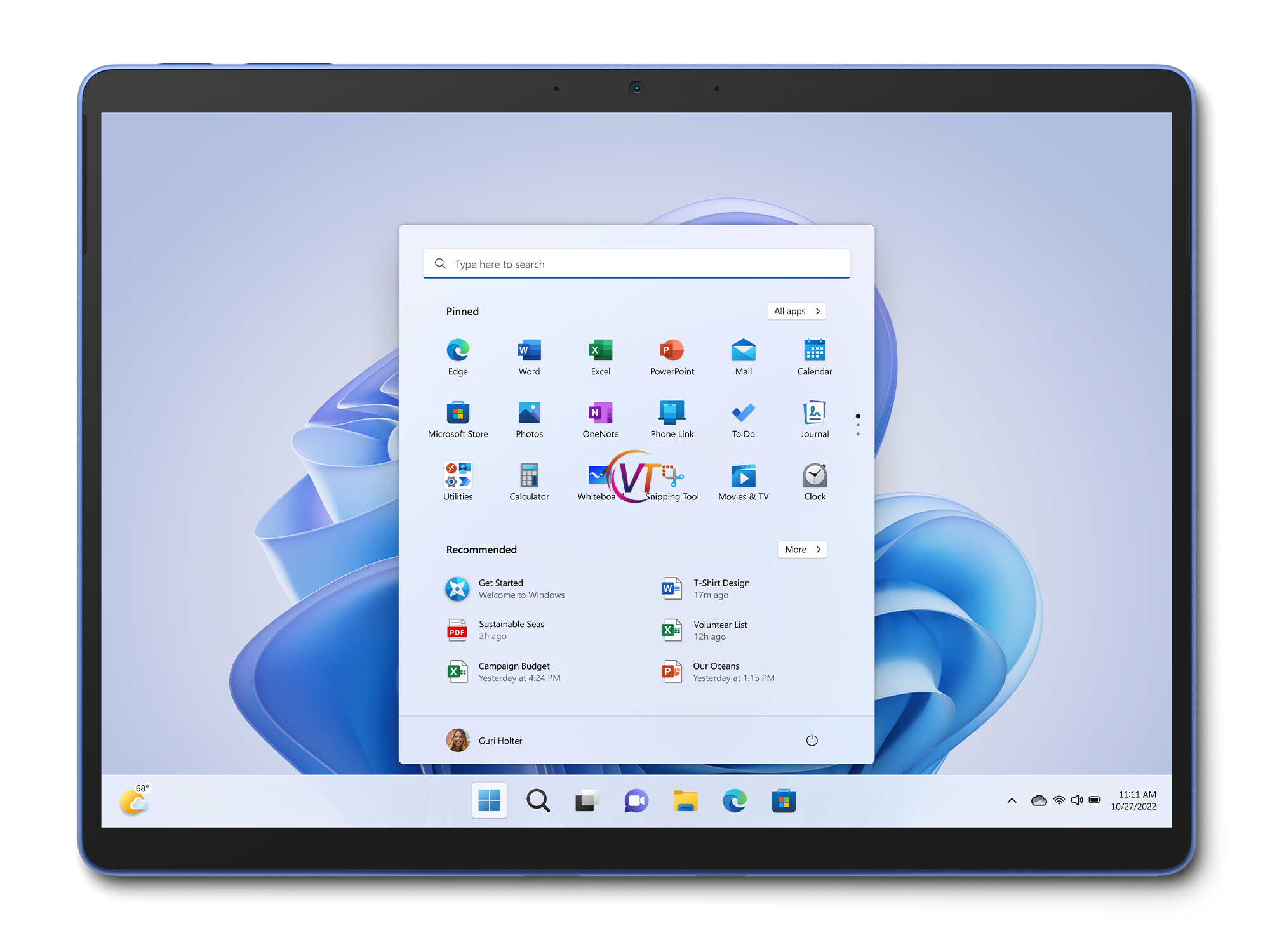
Hey Surface Pro 9 users! Are you tired of muffled sound or non-functional speakers on your device? Say goodbye to audio woes because we’ve got you covered! In this comprehensive guide, we’ll take you through the step-by-step process of replacing the speakers in your Surface Pro 9. Get ready to unleash the full potential of your device’s audio capabilities!
Why Speaker Replacement Matters:
The speakers on your Surface Pro 9 are essential for enjoying multimedia content, video calls, and more. When they’re not working properly or producing poor quality sound, it can seriously impact your user experience. By replacing the speakers, you can restore crisp, clear audio to your device and enhance your overall enjoyment.
Step-by-Step Guide to Speaker Replacement:
1. Gather Your Tools: Before you begin, make sure you have all the necessary tools at hand. You’ll need a small Phillips screwdriver, a plastic opening tool or spudger, a heat gun or hair dryer, and replacement speakers compatible with the Surface Pro 9.
2. Power Off Your Surface Pro: Always start by powering off your device completely to avoid any accidents during the repair process. Press and hold the power button until the power menu appears, then select “Power off” and wait for your Surface Pro to shut down.
3. Remove the Back Cover: Use the heat gun or hairdryer to warm up the adhesive around the edges of the back cover. Once the adhesive is softened, use the plastic opening tool or spudger to carefully pry the back cover away from the device.
4. Locate the Speakers: With the back cover removed, you’ll have access to the internal components of your Surface Pro 9. Locate the speakers – they’re typically located near the bottom corners of the device.
5. Disconnect the Speaker Cables: Carefully disconnect the cables attached to the speakers from the motherboard using the plastic opening tool or spudger. Take note of how the cables are connected so you can reattach them correctly later.
6. Remove the Old Speakers: Use the Phillips screwdriver to remove any screws securing the speakers in place. Once the screws are removed, gently lift the old speakers out of their housing and set them aside.
7. Install the New Speakers: Place the new speakers into the housing, making sure they’re aligned correctly. Secure them in place with the screws you removed earlier.
8. Reconnect the Speaker Cables: Carefully reattach the speaker cables to the motherboard, ensuring they’re connected securely.
9. Reattach the Back Cover: Line up the back cover with the edges of your Surface Pro 9 and press down firmly to reseal the adhesive.
10. Power On and Test: Once everything is reassembled, power on your Surface Pro and test the speakers to ensure they’re working properly. Play some music or a video to verify the sound quality.
Benefits of Speaker Replacement:
By replacing the speakers in your Surface Pro 9, you can enjoy improved audio quality for all your multimedia needs. Whether you’re watching movies, listening to music, or video chatting with friends, crisp, clear sound can make all the difference.
Conclusion:
Upgrade your Surface Pro 9’s audio experience with our comprehensive speaker replacement guide. Say goodbye to poor sound quality and hello to immersive audio. With our easy-to-follow steps, you can rejuvenate your device and enjoy crystal-clear sound. Don’t settle for subpar audio – take charge and enhance your Surface Pro 9 today! I recommend Screen Fixed for all your device repair needs. Their expertise and dedication ensure top-notch service every time. Trust Screen Fixed to keep your devices running smoothly.